Employee all about me template pages give you a ready-made starting point for introducing yourself at work. Choose a profile that matches what you want to share: your role, the way you work, skills you can offer, or a few interests beyond your job. These free printable designs include blank writing areas and adult-friendly layouts. You can complete one for a new team, a project introduction, or an informal welcome activity without writing a long biography.
Choose an Employee All About Me Template
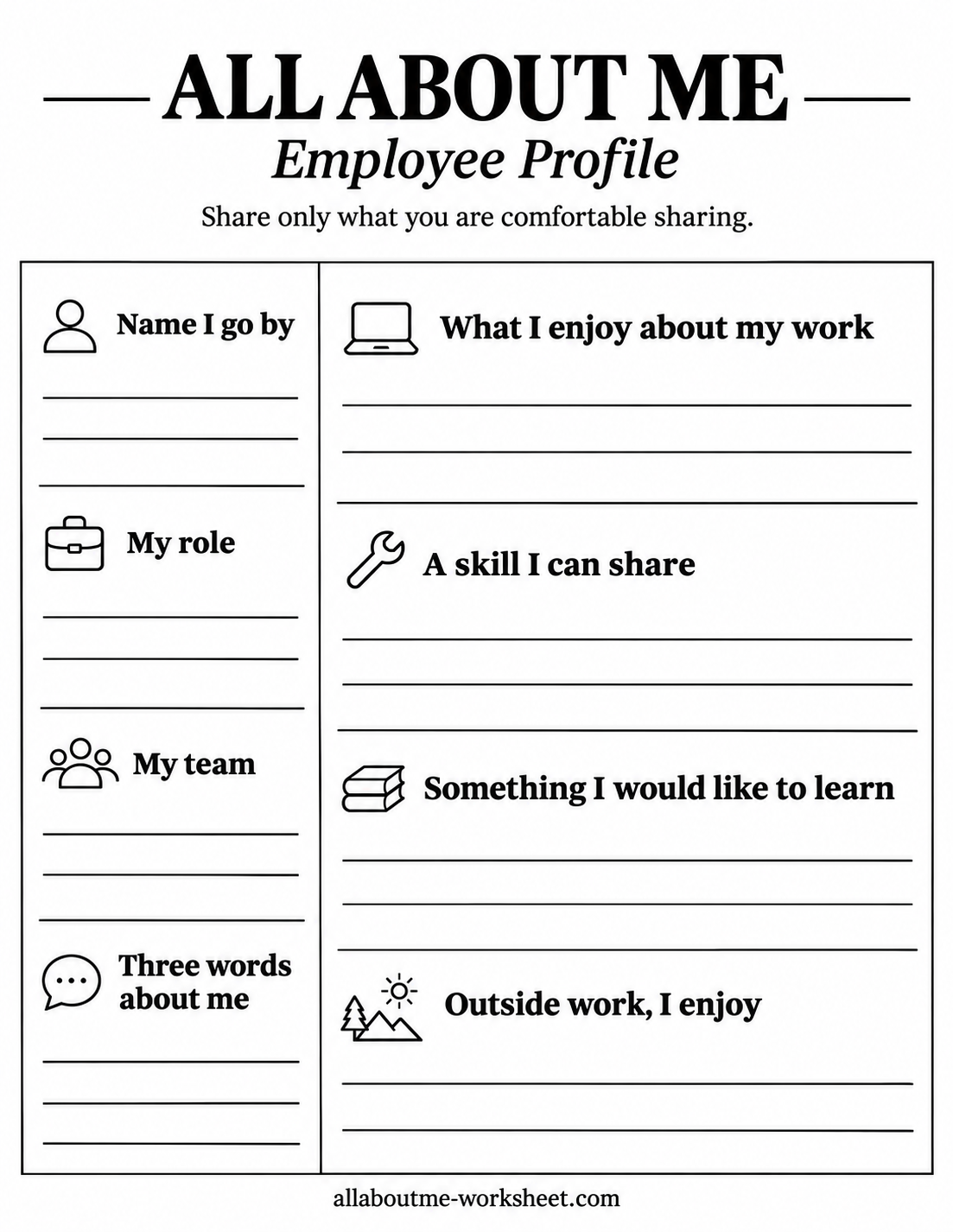
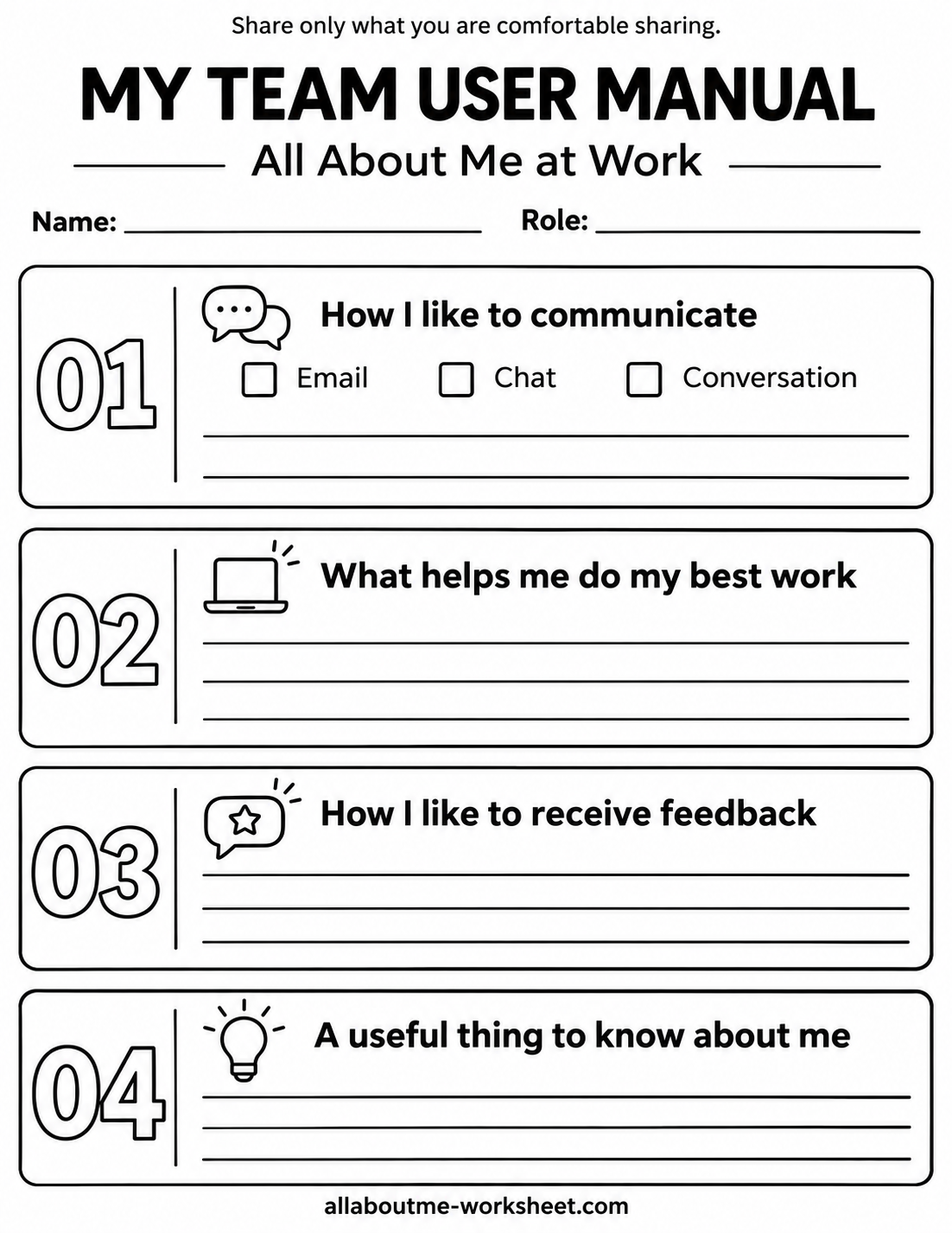
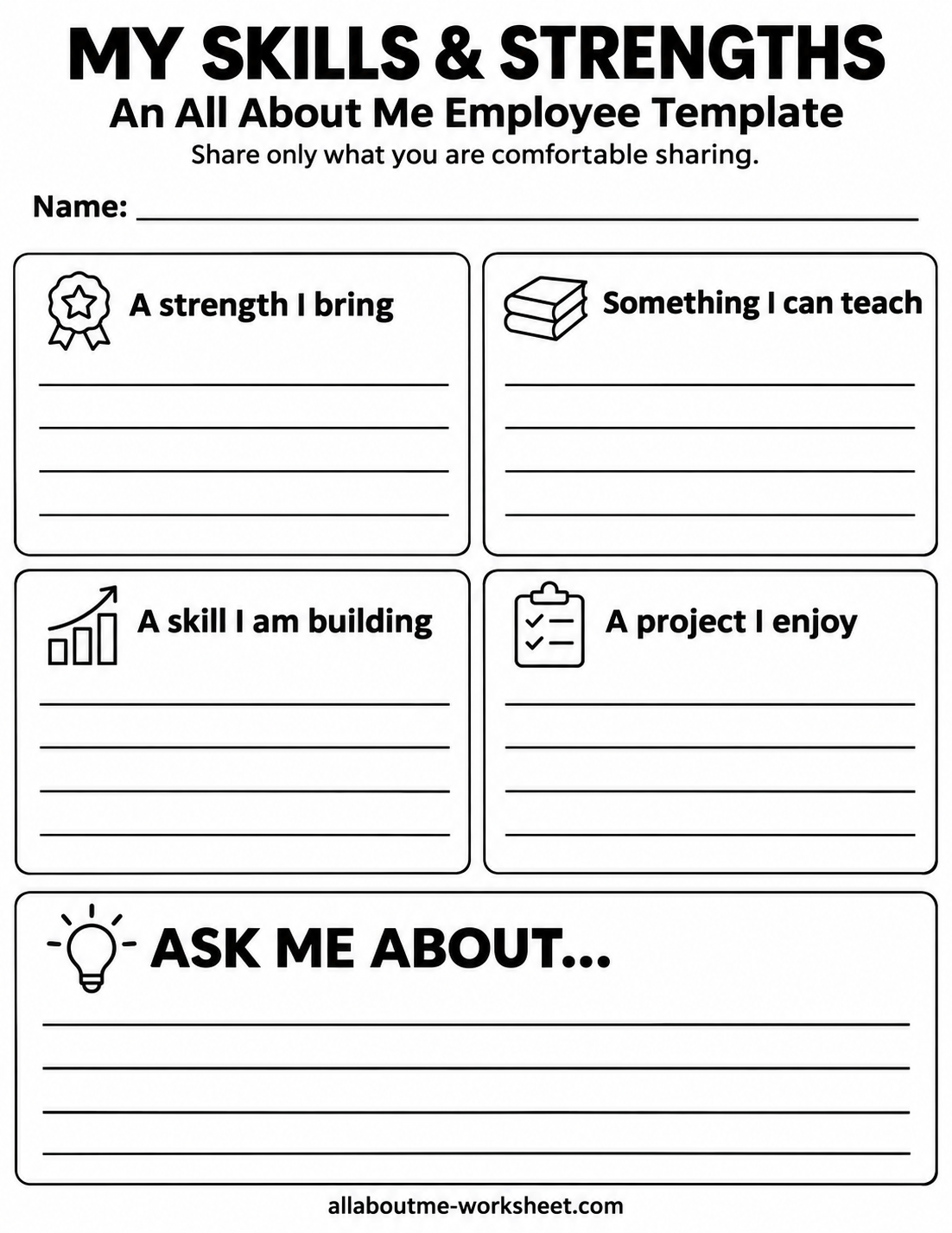
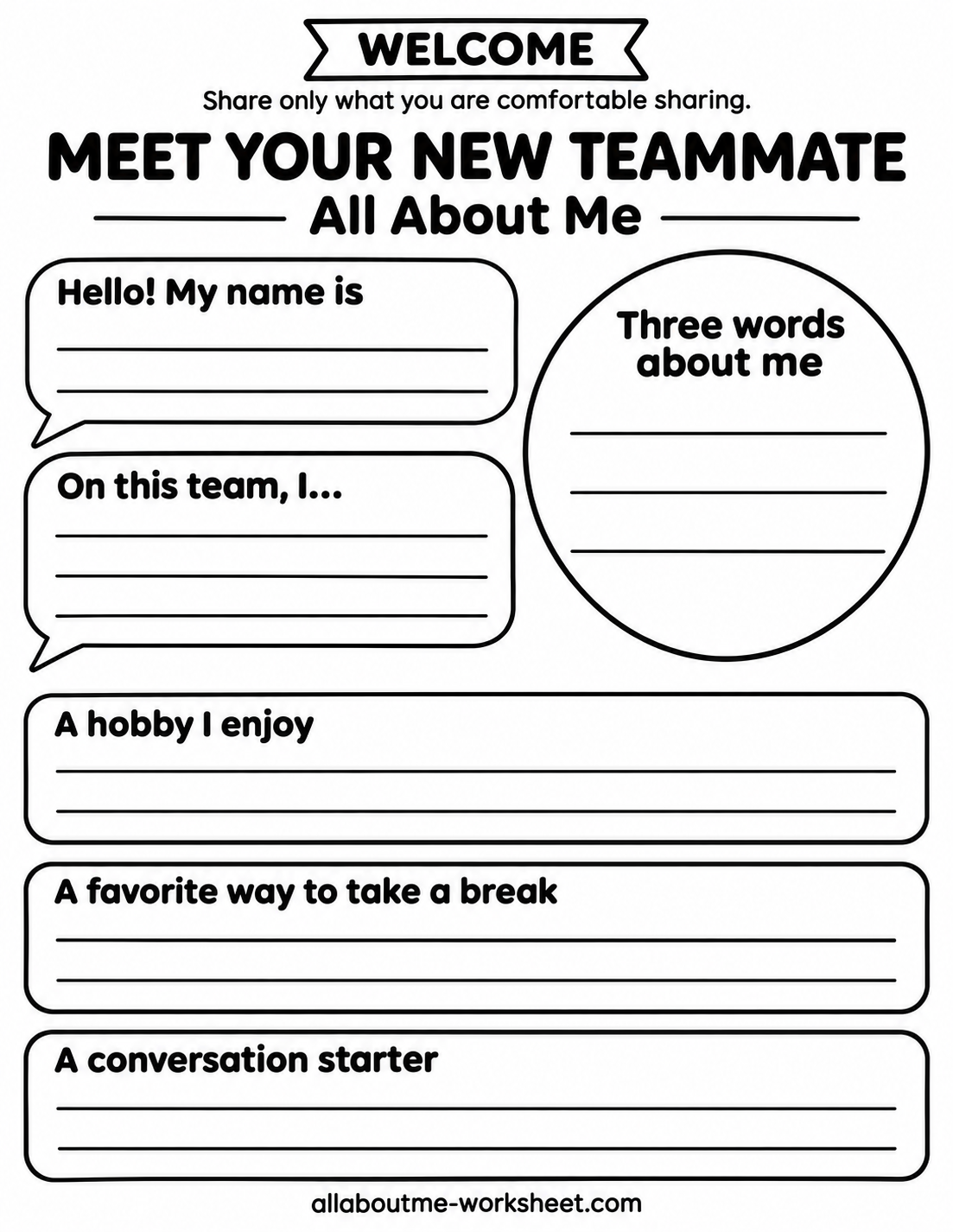
The four designs cover different kinds of introductions. Select the page that fits your purpose, then write as much or as little as you need. You do not have to complete the entire collection. Each image includes the allaboutme-worksheet.com watermark and a white background with black text and outlines.
Employee Profile
This design places your name, role, team, and three describing words in a narrow sidebar. The wider column asks what you enjoy about work, a skill you can share, something you would like to learn, and what you enjoy outside work. Choose it when you want a balanced introduction with clear places for both professional and everyday details.
My Team User Manual
Four numbered sections organize your communication preferences, working conditions, feedback preferences, and another useful detail about you. The first section includes checkboxes for email, chat, and conversation, followed by writing lines. You can check more than one option and explain when each works well. The broad horizontal panels leave room for examples instead of isolated labels.
My Skills and Strengths
A four-panel grid asks about a strength you bring, something you can teach, a skill you are building, and a project you enjoy. A large “Ask Me About” area sits underneath. This is a useful choice for introducing expertise within a team. Include everyday knowledge, such as organizing shared files or explaining a familiar process, as well as specialist skills.
Meet Your New Teammate
The welcome design uses speech bubbles for your name and team introduction, plus a circular space for three words about you. The lower sections cover a hobby, a favorite way to take a break, and a conversation starter. Pick this version for an informal welcome where you want the page to sound friendly and personal.
Print a Clear, Full-Page Copy
Download the WebP image for your chosen design before printing. Open that file in an image viewer or browser and select US Letter paper, measuring 8.5 by 11 inches. Use portrait orientation and choose the option that fits the whole image within the printable area. Check the preview to make sure the outer lines and footer remain visible.
Print one test copy before making a larger set. If a border disappears, reduce the scale slightly rather than cropping the image. Standard white printer paper is suitable for handwriting with a pencil or pen. These are image files with blank response spaces; type directly on them only if your chosen application provides an image annotation tool.
How to Complete an Employee All About Me Template
Begin with the easy details. Add the name you use at work and a brief description of your role. When the page asks for three words, choose terms you would feel comfortable explaining. “Curious, practical, patient” gives you three possible conversation starters; there is no required set of personality words.
Next, replace broad answers with small examples. Under a skill you can share, “I can show new teammates how to organize our shared folders” tells readers more than “technology.” Under something you want to learn, you might name a task, process, or tool you have not tried. Keep your answers relevant to the people who will read the page.
For communication prompts, describe the situation as well as your preference. You might write that email suits detailed instructions while a short conversation works for an unclear question. Avoid promising that you always work in one particular way. The page can describe your current preferences while leaving room for different tasks and circumstances.
Finish by reviewing what you want others to see. You can leave a question blank, shorten an answer, or choose a different design. A hobby can be something simple, such as walking, cooking, or reading. You do not need an unusual achievement or a personal story to make a useful introduction.
Use the Page in a Team Introduction
For a welcome meeting, invite each person to share one work detail and one optional interest. Let participants choose which answers to discuss. If you are organizing the activity, explain whether completed sheets will stay with their owners, be exchanged with a partner, or be displayed. Ask before photographing or circulating someone’s page.
You can revisit the template when your role changes or a new project begins. Add a date in an empty margin if you want to remember when you completed it. A fresh copy gives you space to update your learning interests, responsibilities, or preferred ways of collaborating.
If you are preparing a welcome activity for several employees, let people select different designs. Someone introducing a technical role may choose the skills page, while another person may prefer the informal welcome sheet. Give everyone the same chance to decide what to share, and keep the discussion focused on meeting the person behind the answers.
For a longer team discussion, Atlassian’s personal user manual activity provides a separate facilitation guide about work styles and communication preferences. Use it as an optional follow-up after completing your introduction.